Create Project Using AI
Overview
Describe your needs in plain language, and NocoAI generates a complete project. The project includes tables, views, fields and relationships. Use this for fast prototypes and workflow automation. You do not need technical skills.
Steps to Create a Project Using AI
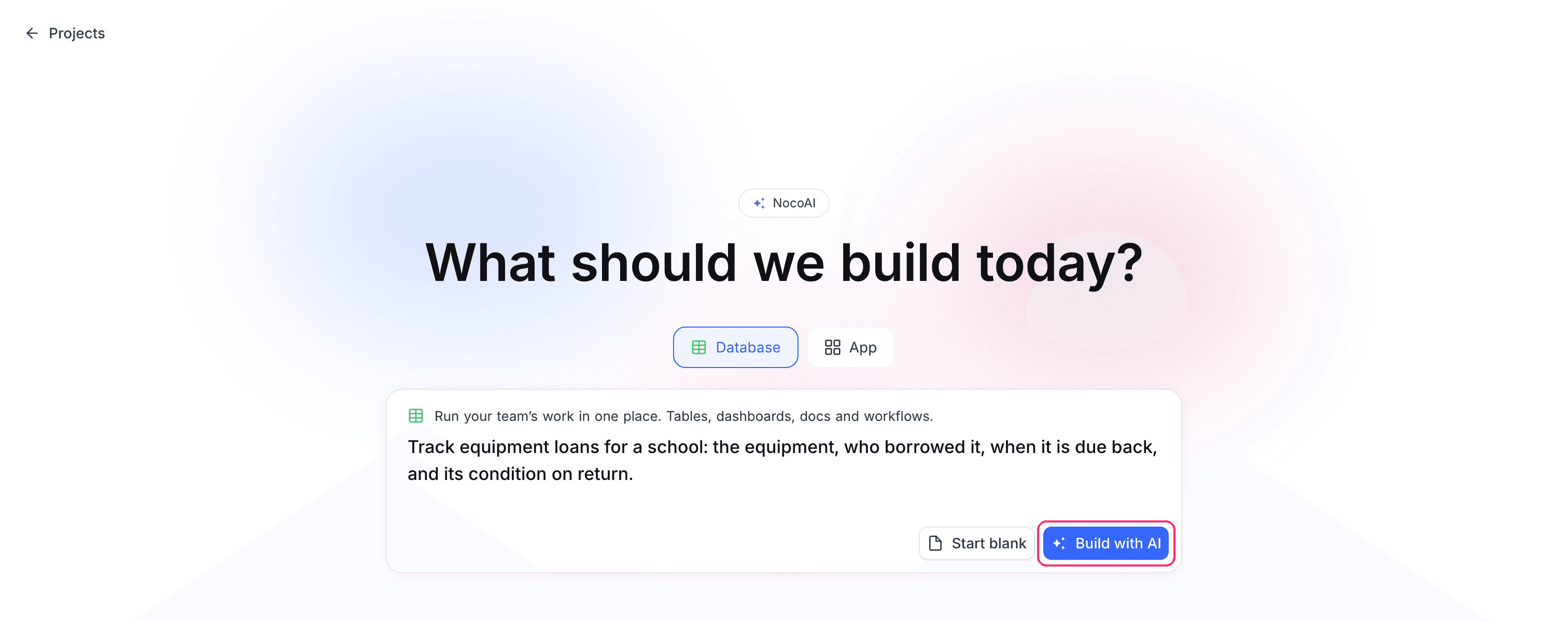
- On the workspace Projects page, click New project. The New project page opens. This page is on NocoDB Cloud.
- Type your prompt in the text box. For example:
Streamline the hiring process by managing candidate applications, scheduling interviews, and tracking hiring outcomes.
- (Optional) Above the text box, select what to build. Database builds tables, fields and views. App also builds an app on them. The choice is available where AI apps are available.
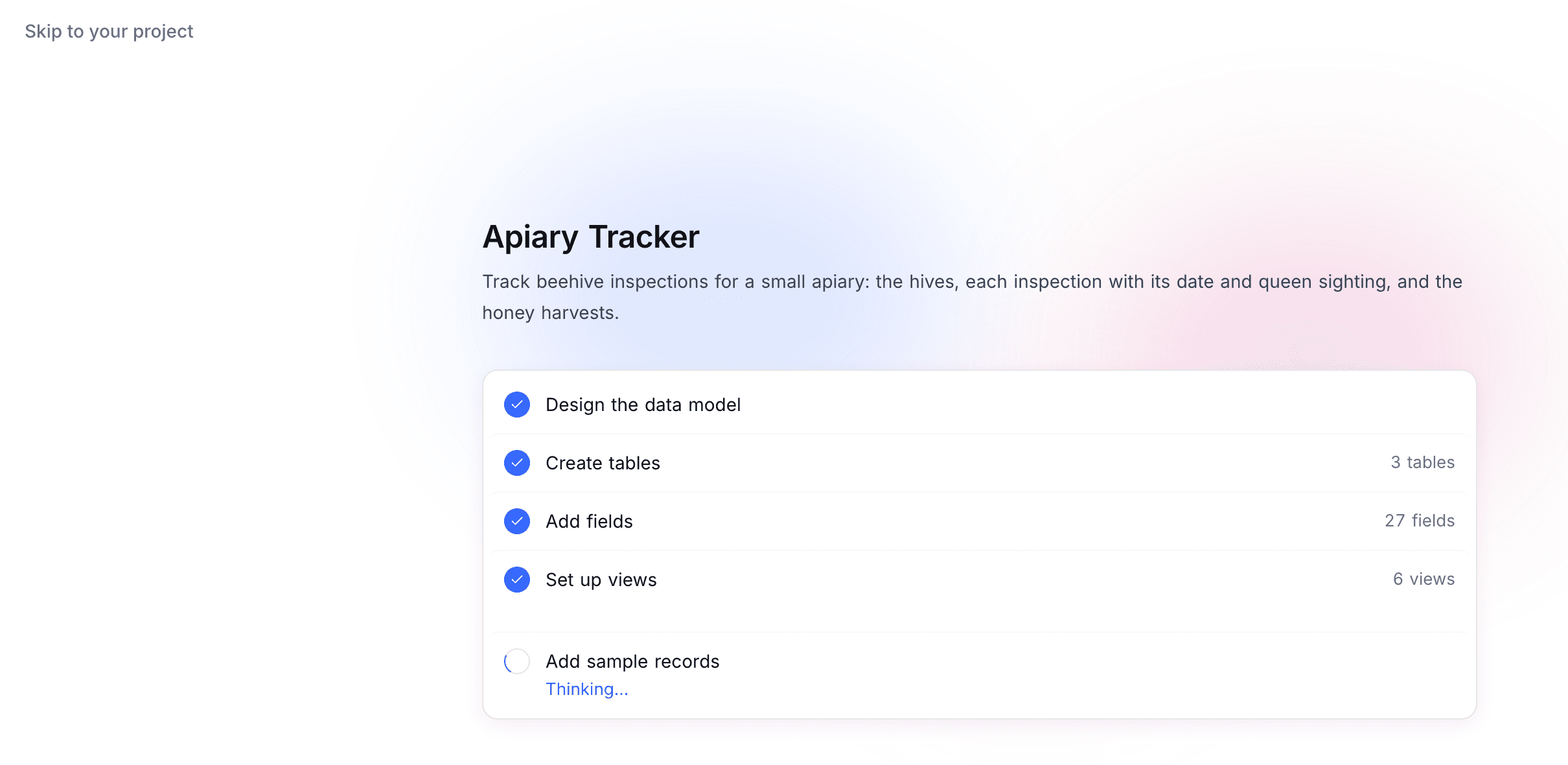
- Click Build with AI. NocoAI shows the progress of each step: Design the data model, Create tables, Add fields, Set up views and Add sample records. A database build ends with a few records in each table, so you can open it and see it working. An app build ends with Assemble the app and adds no sample records. When a template fits your description, the build starts from it instead: the steps are Start from the template name template and Tailor it to your request, then Add sample records.
- When the build is complete, click Open your data, or Open your app for an app build. NocoAI has created the project, and you can start to use it.

Tips for Better AI Suggestions
-
Be clear and specific
Do not use vague descriptions such as “make a project tracker.” Write a clear description, for example:Track multiple projects with assigned team members, tasks, deadlines, and project status updates.
-
Mention key entities and relationships
Write what you want to manage and how the items relate.Each candidate can apply to multiple job openings and be scheduled for multiple interviews.
-
Add extra context
Name the industry and the audience in your prompt. They help guide the AI. -
Start simple, refine later
Start with a short prompt. After the build, ask NocoAI in the project for the changes you need.
Next Steps
After you create your project, try more NocoAI capabilities:
- AI-assisted View Suggestions
- AI-assisted Field Suggestions
- Prompt-based Formula Generation
- Smart Select Option predictions
Let AI do the work, and focus on what matters to you.
Availability
- You can create a project with AI on NocoDB Cloud (Plus plan and above). On Cloud, this uses credits.
- Self-hosted deployments do not have the New project page, so they cannot build a project from a prompt.
Last updated on