Subscription & Billing
Manage your NocoDB subscription in the billing dashboard.
Billing dashboard
To open the billing dashboard:
- In the workspace sidebar, click Settings.
- Open Billing, under Plan.
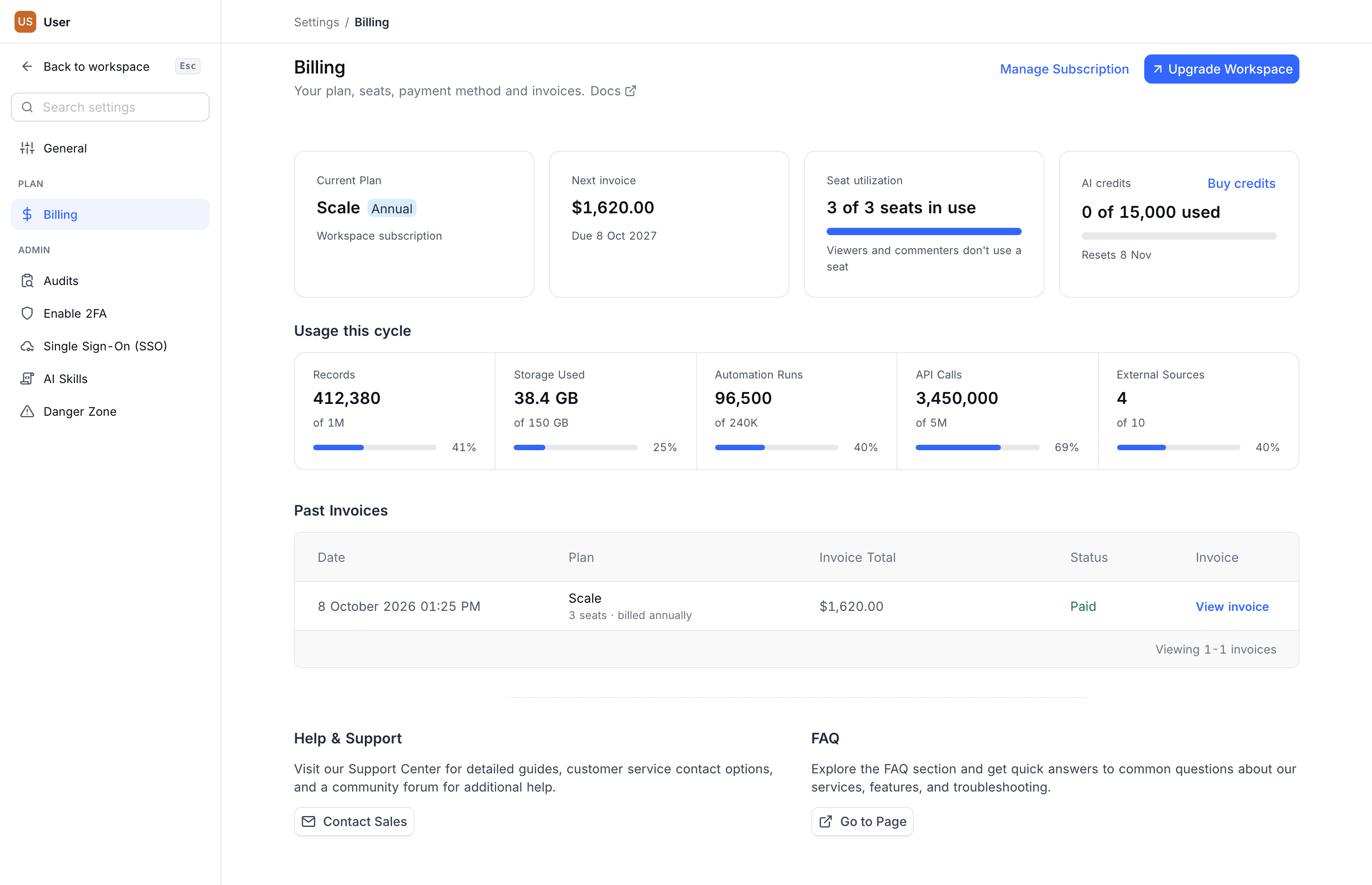
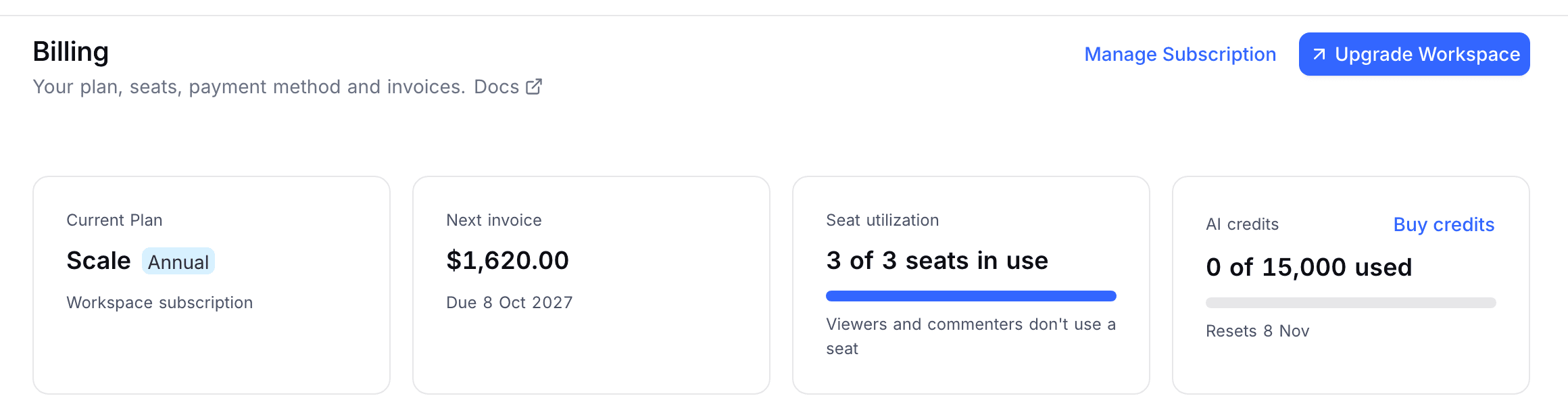
Four cards summarise the subscription:
- Current Plan: the plan name, and whether it is billed monthly or annually
- Next invoice: the amount and the date it is due
- Seat utilization: seats in use against the seats you are billed for. Viewers and commenters do not use a seat.
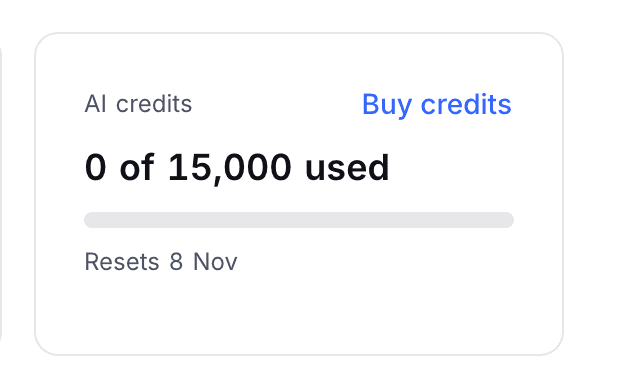
- AI credits: credits used against your allowance, with the reset date and a Buy credits button
Usage this cycle shows one tile for each plan limit: Records, Storage Used, Automation Runs, API Calls and External Sources. Each tile gives the figure used, the limit, and a bar. The bar turns orange from 80% and red at the limit, where it also offers Upgrade.
Credits
The AI credits card on the billing dashboard shows the credits for usage-based features: NocoDB AI, script execution, and AI web search. The card shows:
- How much of your allowance you used.
- When the allowance resets.
- That NocoDB uses plan credits before the credits that you bought.
Each plan includes a monthly allowance. Workspace owners can buy credit packs with Buy credits at any time.
Refer to Credits for allowances per plan, what consumes credits, and the purchase flow.
Change your plan
- In the workspace sidebar, click Settings.
- Open Billing, under Plan.
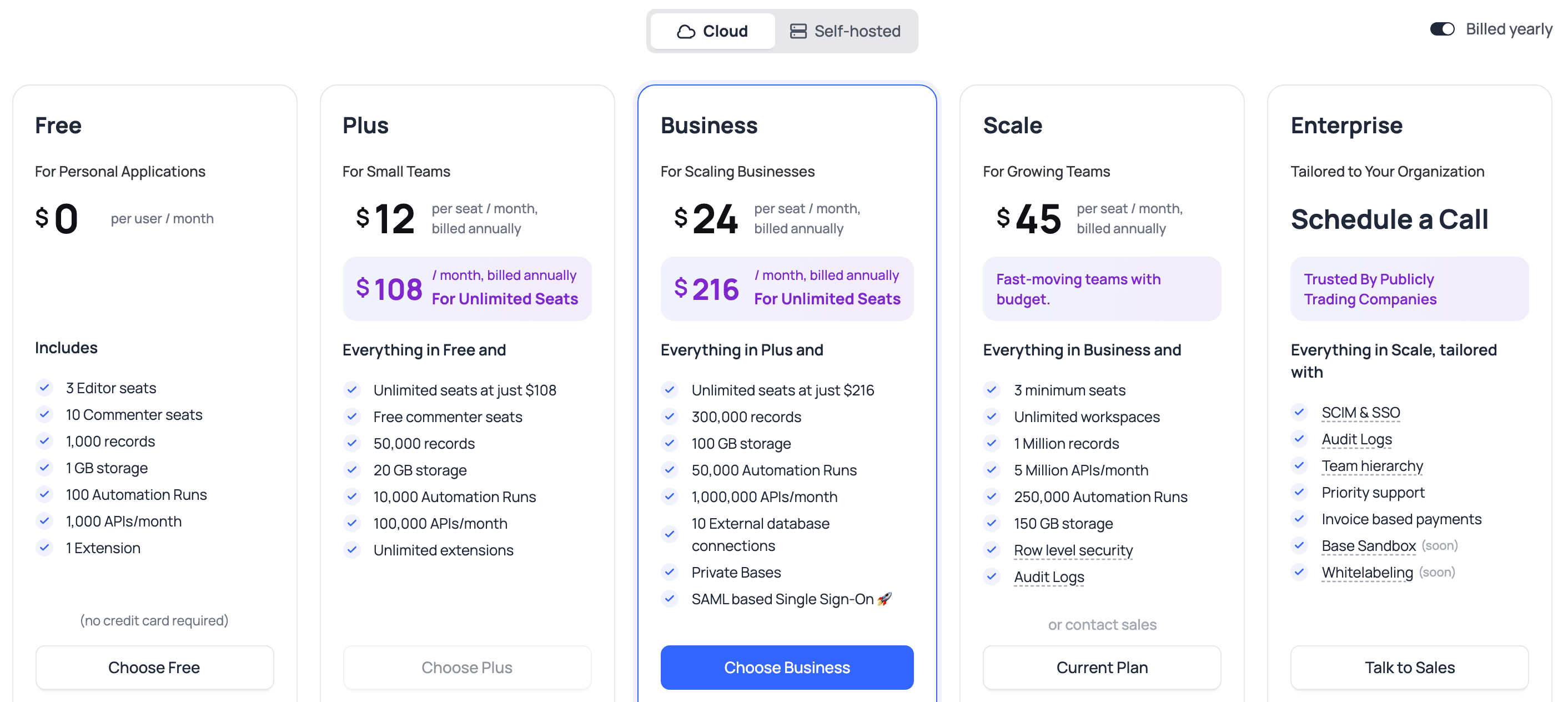
- Click Upgrade Workspace.
- Select the plan.
- Follow the prompts to confirm.
Manage subscription
On the billing dashboard, click Manage Subscription. The Stripe billing portal opens. In the portal, you can:
- Update your card details
- See upcoming payments
- Add or change your payment method
- Cancel your subscription

Billing owner
The billing owner is the member whose payment method pays for the plan. On the Workspace Members page, the row of the billing owner carries a Billing owner badge.
While the plan is live and is not set to cancel, you cannot remove the billing owner from the workspace, and you cannot change their role from Owner. The billing owner also cannot delete their NocoDB account. To free them, take over billing or cancel the plan.
To take over billing, you need the Owner role in the workspace:
- On the billing dashboard, click Become billing owner. The button shows only if someone else is the billing owner.
- Add a payment method.
NocoDB charges the next invoices to your payment method and sends them to you. It also removes the saved payment methods of the previous billing owner.
For a workspace that is billed through an organization, the billing owner is an organization admin. Change it from the organization billing page.
Download invoices
- On the billing dashboard, scroll to the Past Invoices section.
- Next to the invoice, click View invoice. A PDF copy opens in a new tab.
If NocoDB cancels a subscription because a payment failed repeatedly, it voids the invoices that are still unpaid. Those invoices stay in the list with the status void, and you do not have to pay them.

Cancel plan
- In the workspace sidebar, click Settings.
- Open Billing, under Plan.
- Click Manage Subscription. The Stripe billing portal opens.
- Click Cancel subscription.
- When the portal asks, confirm.
You can also downgrade directly:
- In Billing, click Upgrade Workspace.
- Select Choose Free.
- Click Proceed.
- Follow the prompts.
The plan picker marks your current plan and offers Choose Free at the other end.
For help, contact the Support team.
Last updated on