Share Project
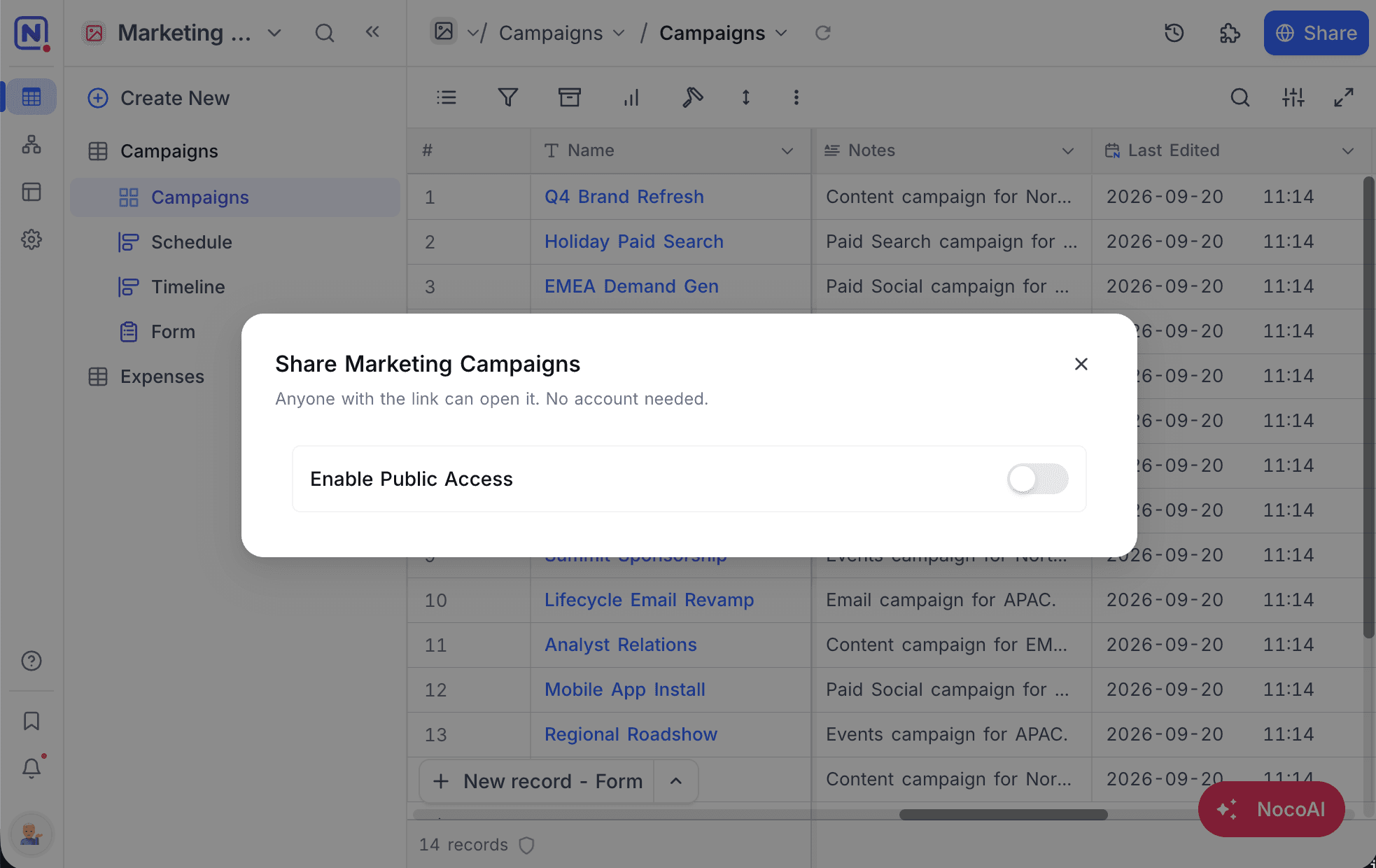
Enable public access
To share a project:
- In the sidebar, right-click the project. Or open the project context menu from the toolbar.
- Click
Share base. - Turn on the
Enable Public Accessswitch. NocoDB makes a shareable link. - Click
Copy URLto copy the link.
Share button in the top right corner opens the invite dialog, which adds people as members of the project. Publishing a read-only link to the whole project is done from Share base in the project context menu, and is available to project Owners and Creators.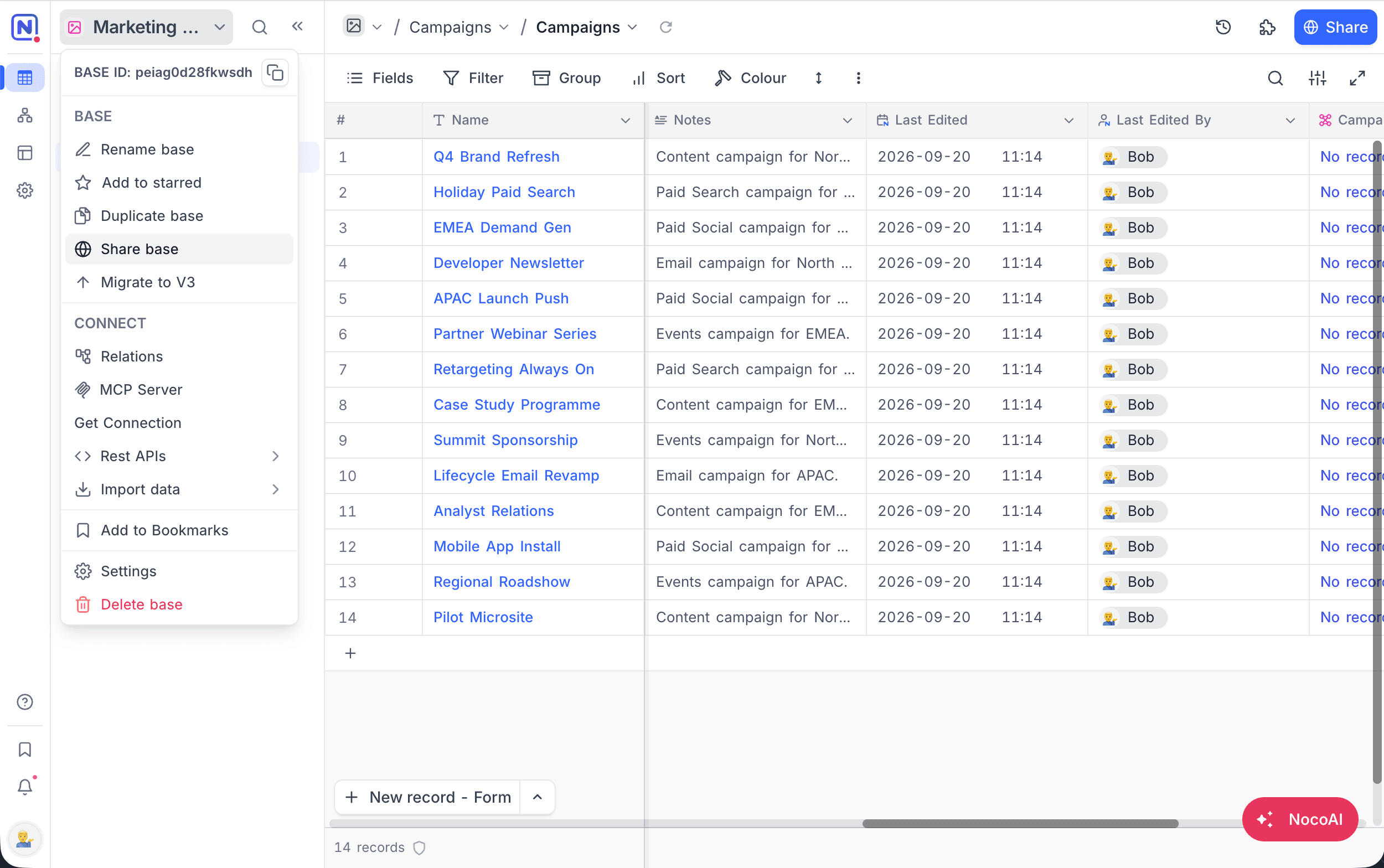
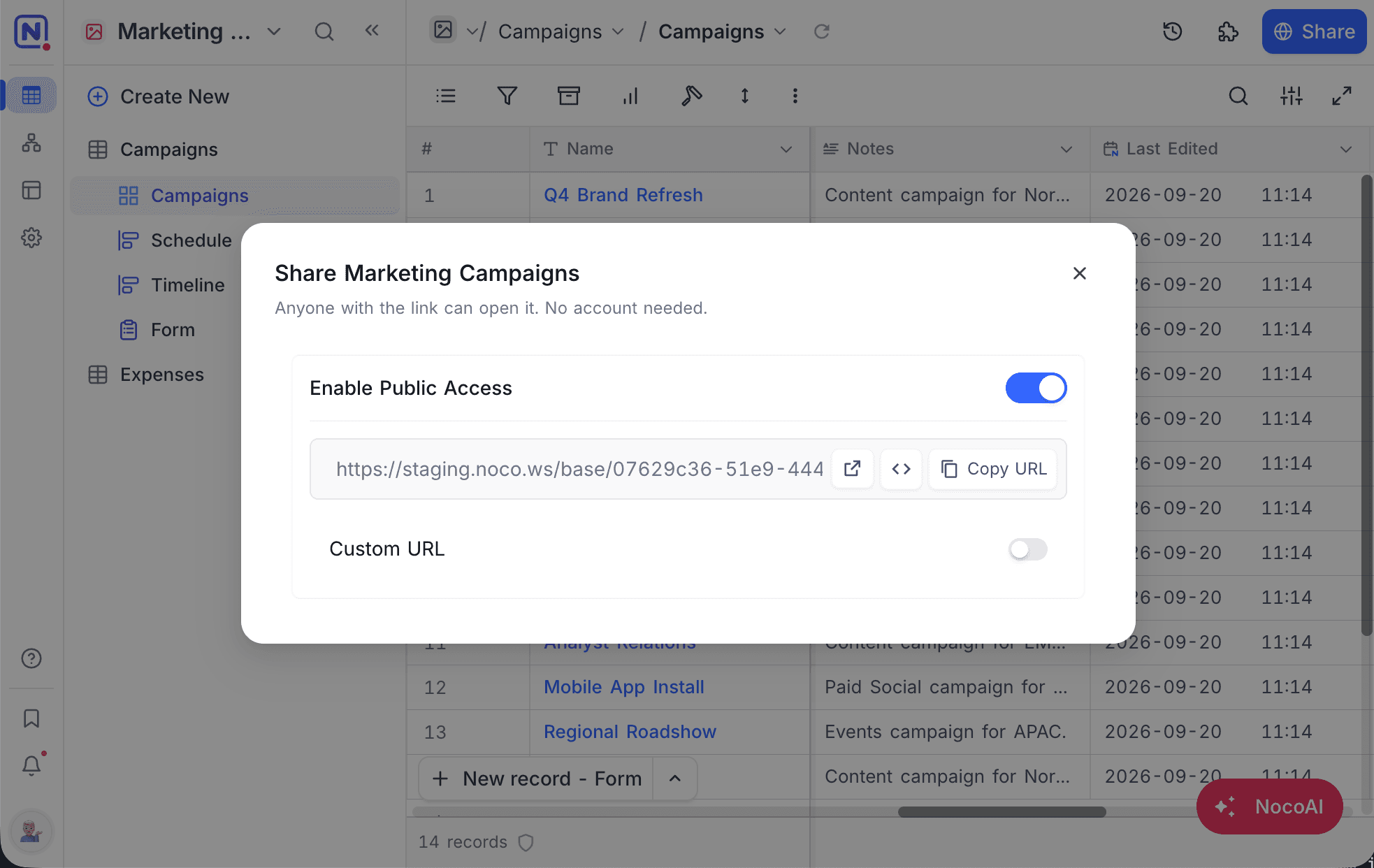
Anyone with the link can also read the comments on a record. NocoDB hides the email addresses of the people who wrote the comments and of the users mentioned in them.
Copy Project
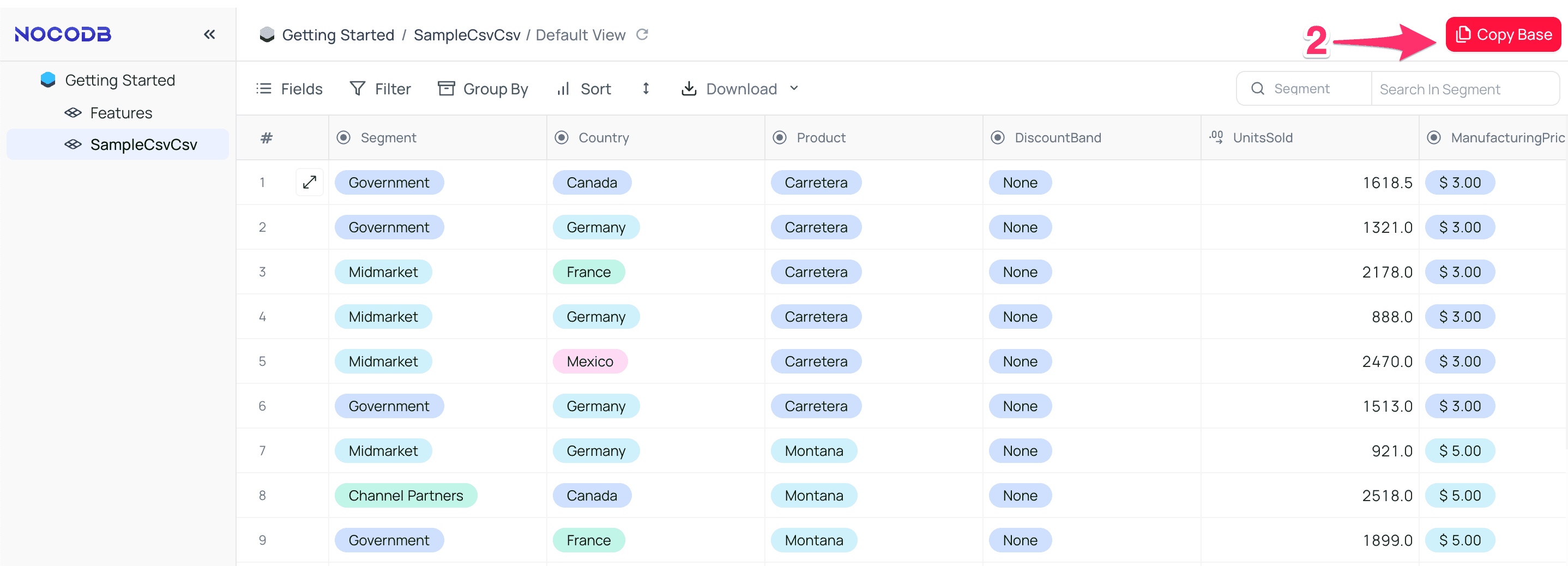
With Copy base, a person with the shared link can import a copy of the project into their own workspace. You can also use it to make a project into a template for new projects. To copy a project:
- Open the shared base URL that you want to copy.
- In the top right corner of the toolbar, click
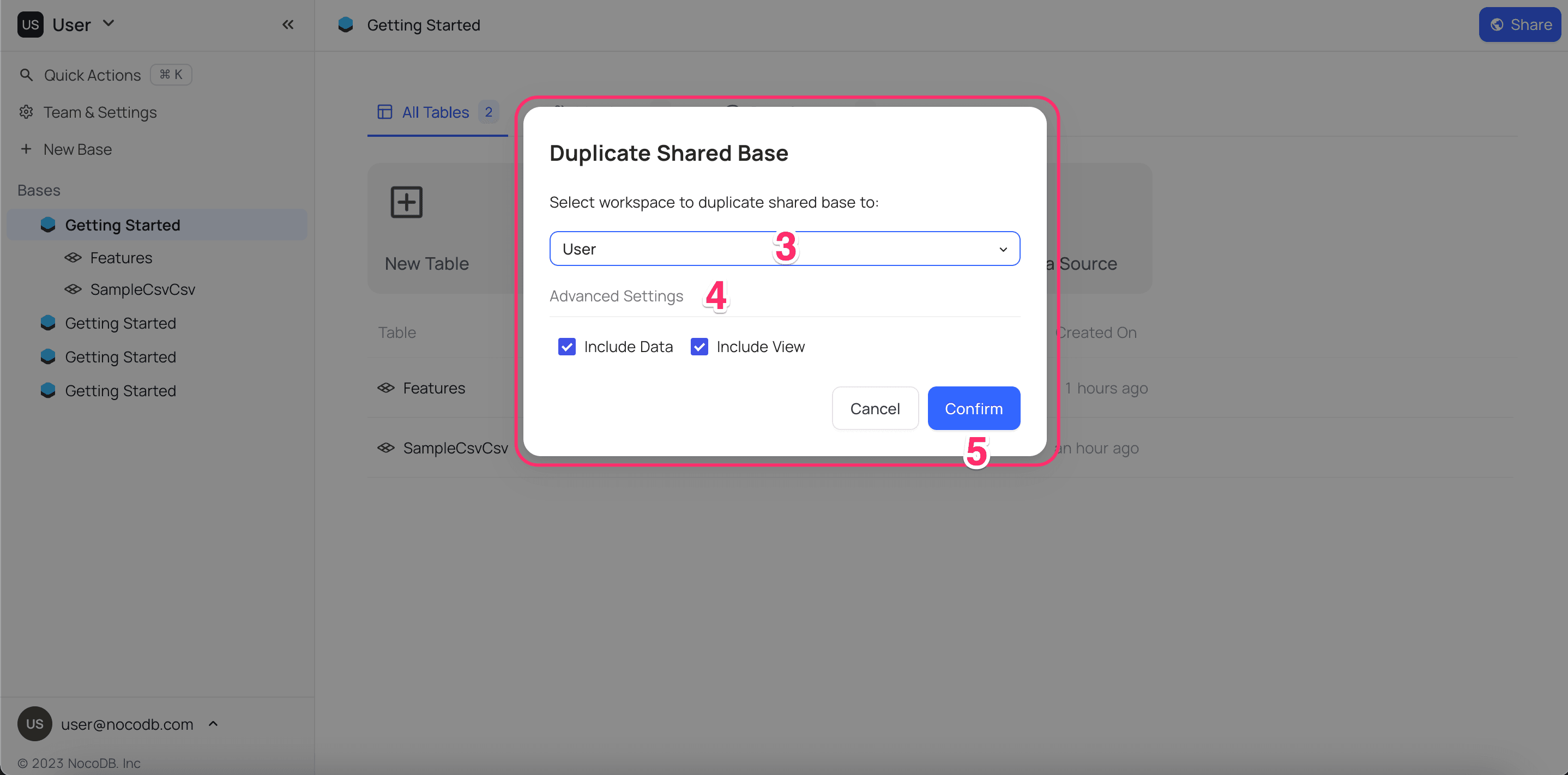
Copy base. A modal opens. - Select the workspace for the copy.
- Select if the copy includes data and views.
- Click
Copy base.
Modify Share project
When you update (regenerate) the shared project configuration, the old link stops working and NocoDB makes a new link. To do this:
- From the project context menu, open
Share base. - Turn off
Enable Public Access. Sharing stops. - Turn on
Enable Public Accessagain. NocoDB makes a new link.
Disable Share project
To disable the shared link:
- From the project context menu, open
Share base. - Turn off
Enable Public Access.
The current share link stops working.
Custom URL
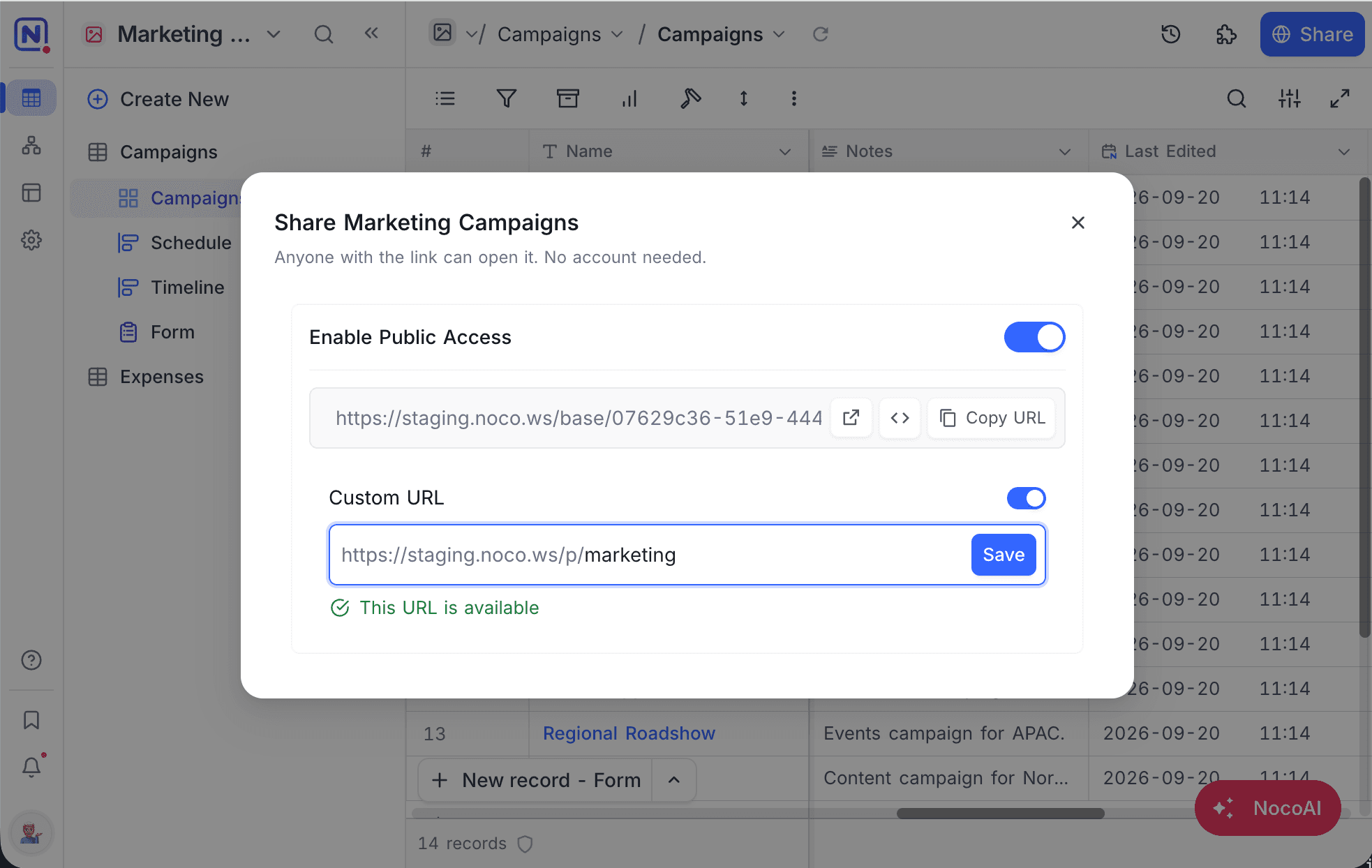
You can set a custom identifier for the shared base URL. The custom URL must be unique. Do not use special characters such as /, ? or #.
To set a custom URL:
- Turn on the
Custom URLoption. - In the input field, type a custom value. If the custom URL is already in use, NocoDB asks you to select a different one.
- Click
Save.
Embeddable Frame
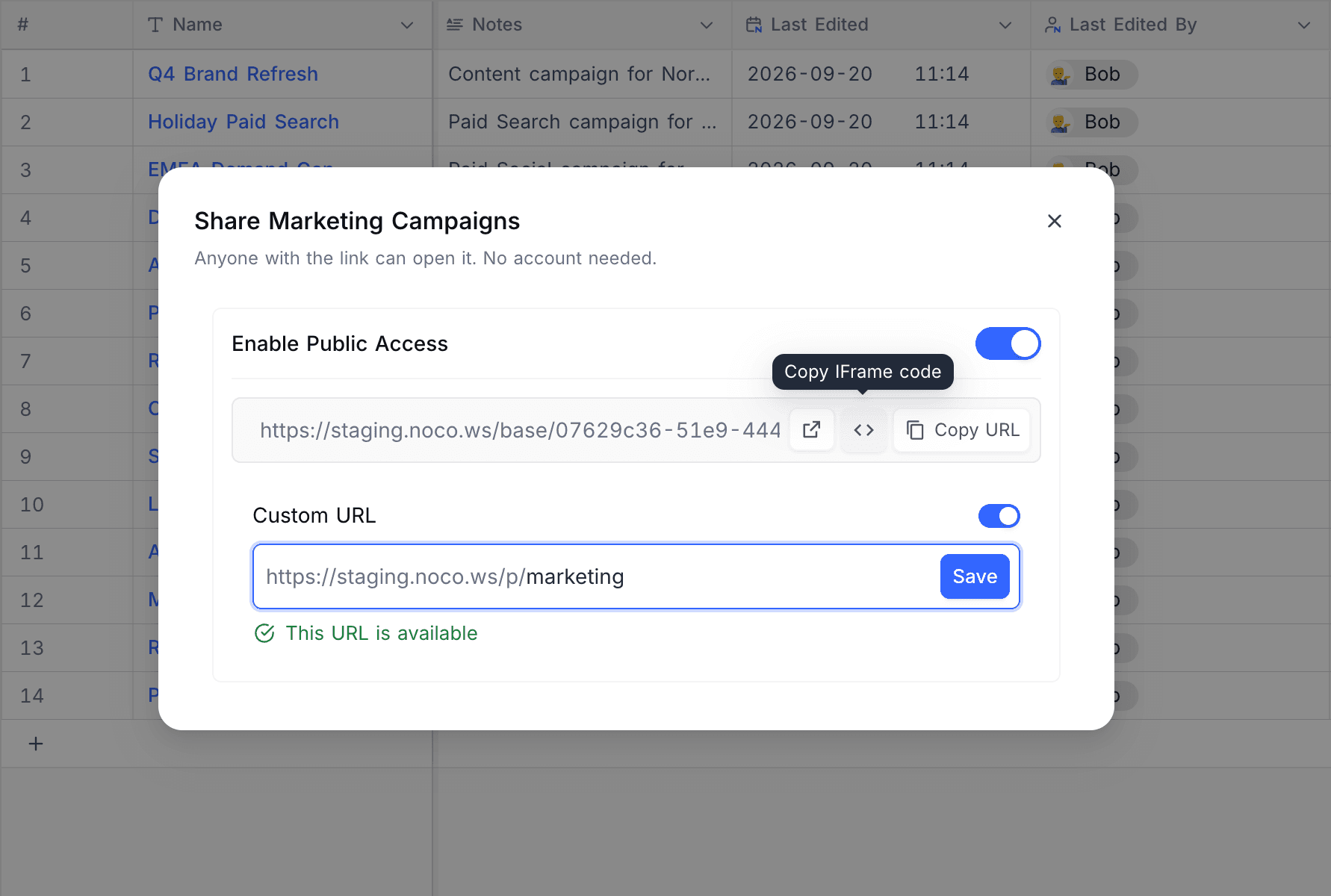
You can embed the shared project in another application with an HTML IFRAME.
To get the iframe code:
- From the project context menu, open
Share base. - Click
<>(labelledCopy IFrame code). NocoDB copies the embed snippet.
The snippet looks like this:
<iframe src="https://app.nocodb.com/base/07629c36-51e9-444c-b1ed-0b30e8e6e1ad" width="100%" height="100%" style="border: none;"></iframe>Change width, height and style to fit the page that holds the iframe.
This is an example of a complete HTML document that embeds the project:
<!DOCTYPE html>
<html>
<head>
    <title>Sample iFrame Example</title>
</head>
<body style="height:100vh; margin:0">
<iframe src="https://app.nocodb.com/base/07629c36-51e9-444c-b1ed-0b30e8e6e1ad" width="100%" height="100%" style="border: none;"></iframe>
</body>
</html>Last updated on